

The DROIDS nowadays happens to be the most happening device. The rate at which the number of applications that is increasing in the Android market speaks for itself. But there are people who don’t go for an Internet connection and thus cannot enjoy these applications, which takes your DROID to a different level. Don’t worry; there is a work around here to install these applications offline. In this post I will discuss how to install .apk (Android Application installation file) files in your DROID offline. I dont take any responsibility if you brick your phone in the process.
There are two cases:
CASE 1: If you already have a file manager then the task is very simple.


Maneuver to Settings->Applications and check the unknown source. This basically will allow you to install applications offline from 3rd party websites (mind you these applications are not authorized by Google, so there is no guarantee of its behavior). Then browse from your file manager to the specified folder and long press the .apk file. Voila your application is installed. A file manager is something like an explorer in windows, which allows you to browse through your files/folders in the SD card.
CASE 2:You have just now brought a brand new DROID and it doesn’t have a file manager.
In this method we will be using the Android SDK (Software Development Kit) to install files in your DROID. Follow the steps below one by one:
Note: Do not connect your phone to the PC unless it is specified in the following steps.
Step 1:
Download the Android SDK and install it in your PC. You can follow this link, which clearly explains all the steps including the download link of the SDK. You may however need to follow just the first 3 steps provided in the link.
Step 2:
Next you have to install the drivers of your Phone in the PC. Most of the manufacturers provide a CD with applications along with the Phone, which contains the drivers for the phones. Follow the instructions provided in the CD and install the drivers.
Step 3:

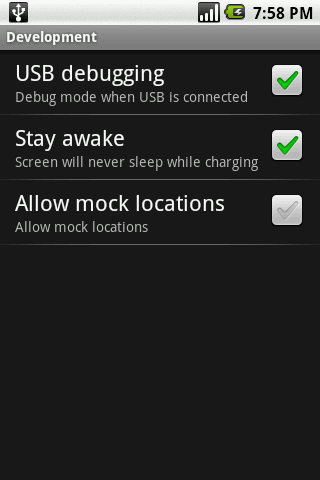
Now in your Phone (DROID), traverse to Settings->Applications->Development and enable (check) the USB debugging options. Once done, connect your phone via USB to the PC. If all the drivers were successfully installed then your device should be identified as a Android USB Composite device.
Step 4:
Open a Command prompt. Just issue the following command in the prompt:
adb install path/application
Where path is the path where your application is stored in the PC and application is the name of the application. Note: there is a space after adb and install. Issuing this command should start the installation procedure. And if all went successful you will get a message stating the application was successfully installed to your DROID.
First time reader of this blog? Check this post to know whats more in this blog!
Want to use your Android Phone as a modem for browsing Internet??? The solution is here. If this post helped you, you can show your support by buzzing this post to your friends, becoming a follower or Join hands to publish your own review/posts.